Move your Magic devices between Macs on your desk.
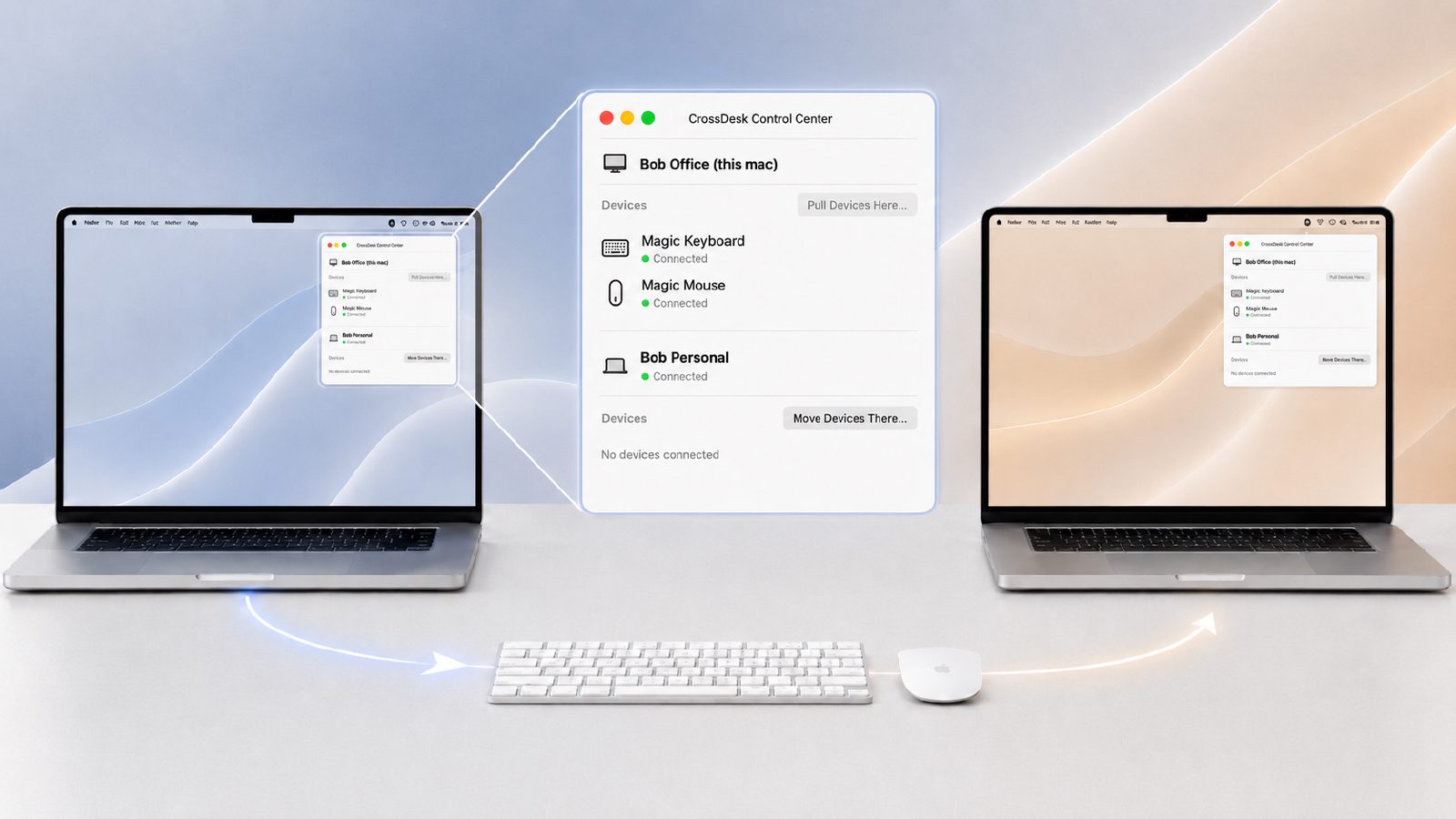
CrossDesk transfers your Magic keyboard, mouse, or trackpad directly between Macs — so it works across Apple IDs, can live alongside Universal Control, and lets you shut down the other Mac after switching. No extra hardware required.
Getting Started
Link the Macs
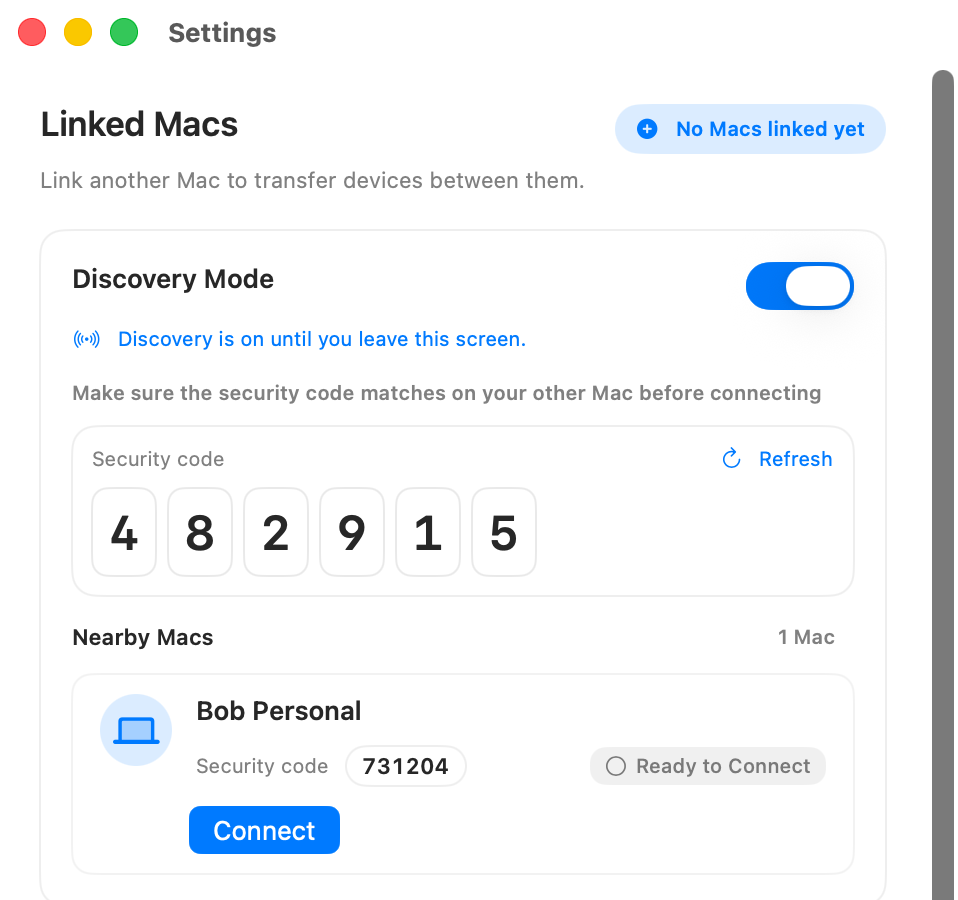
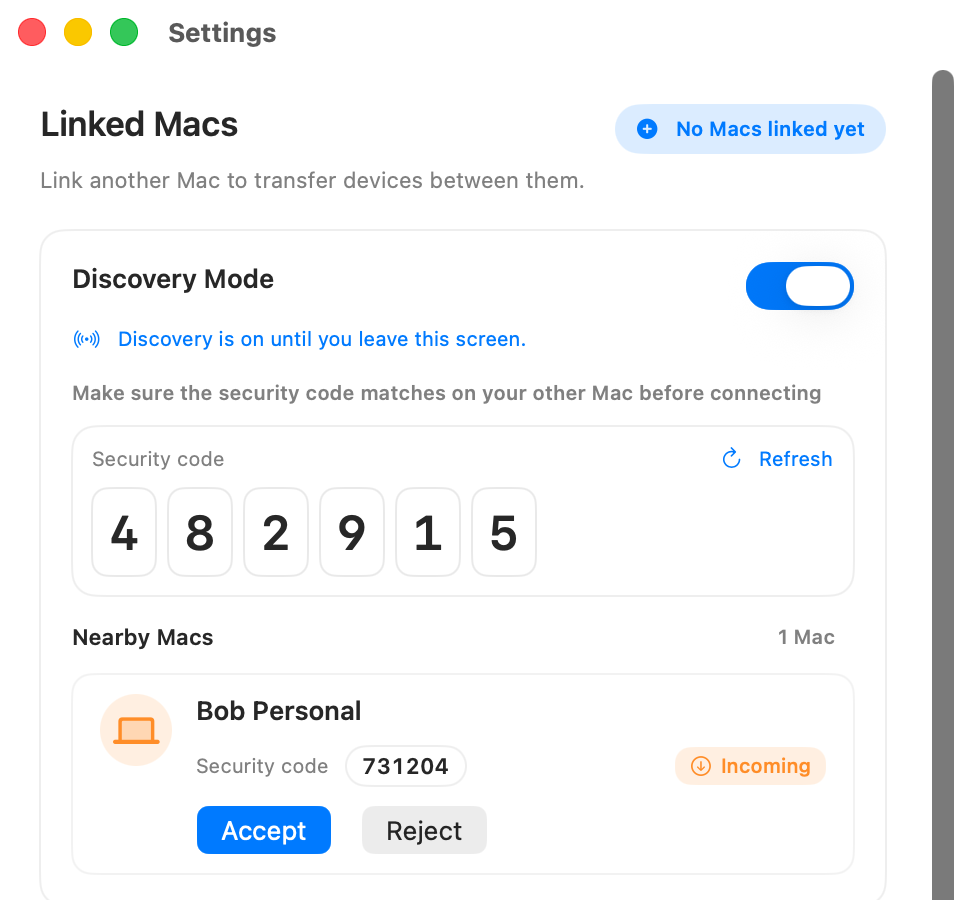
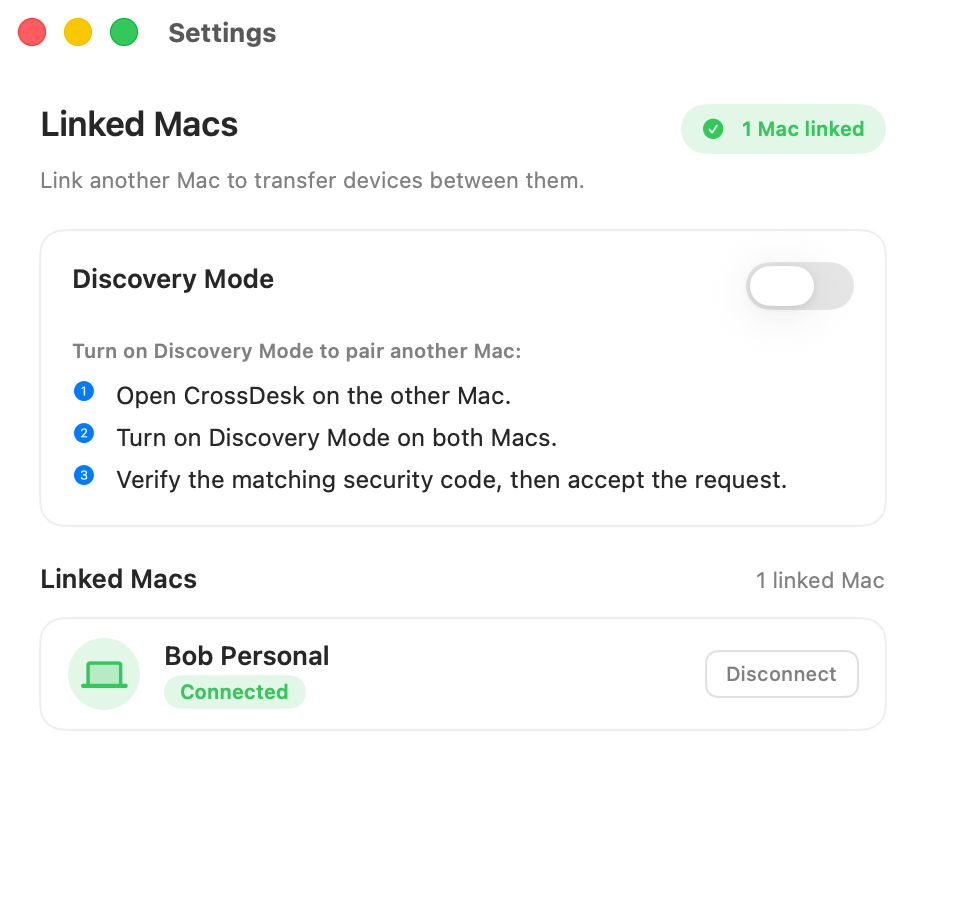
Install CrossDesk on each Mac, then link them in CrossDesk. Both Macs must be on the same local network. No permanent internet connection is required.
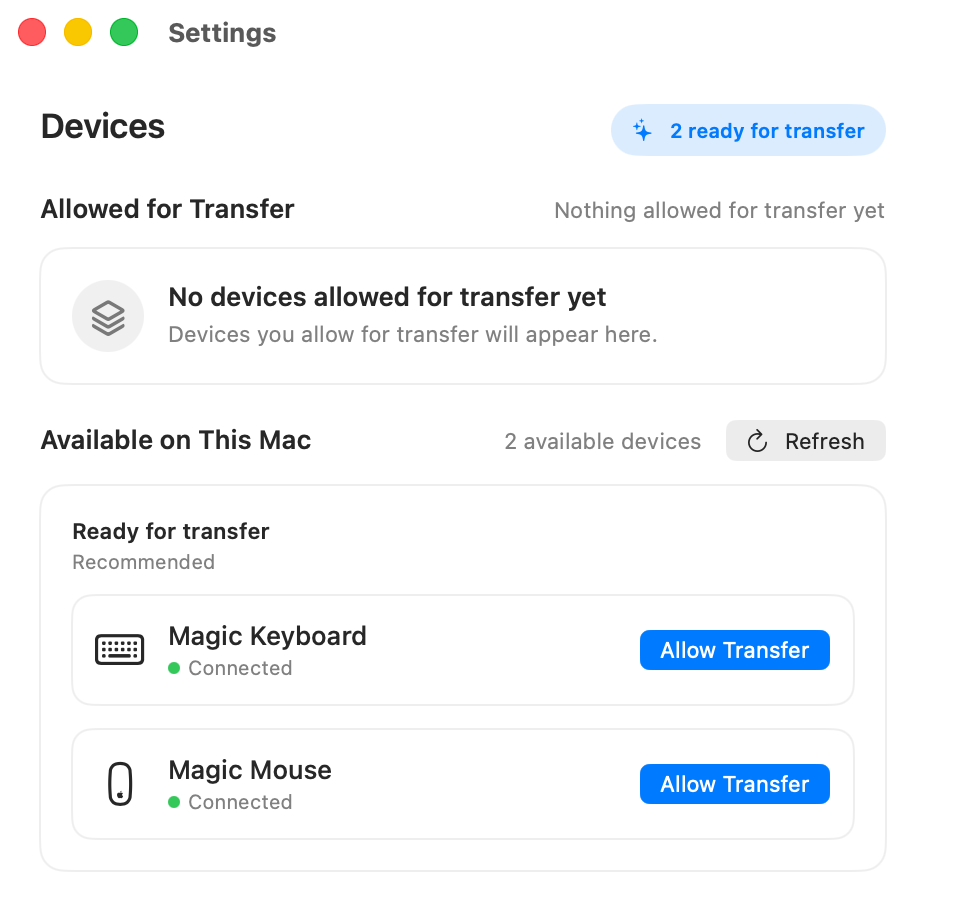
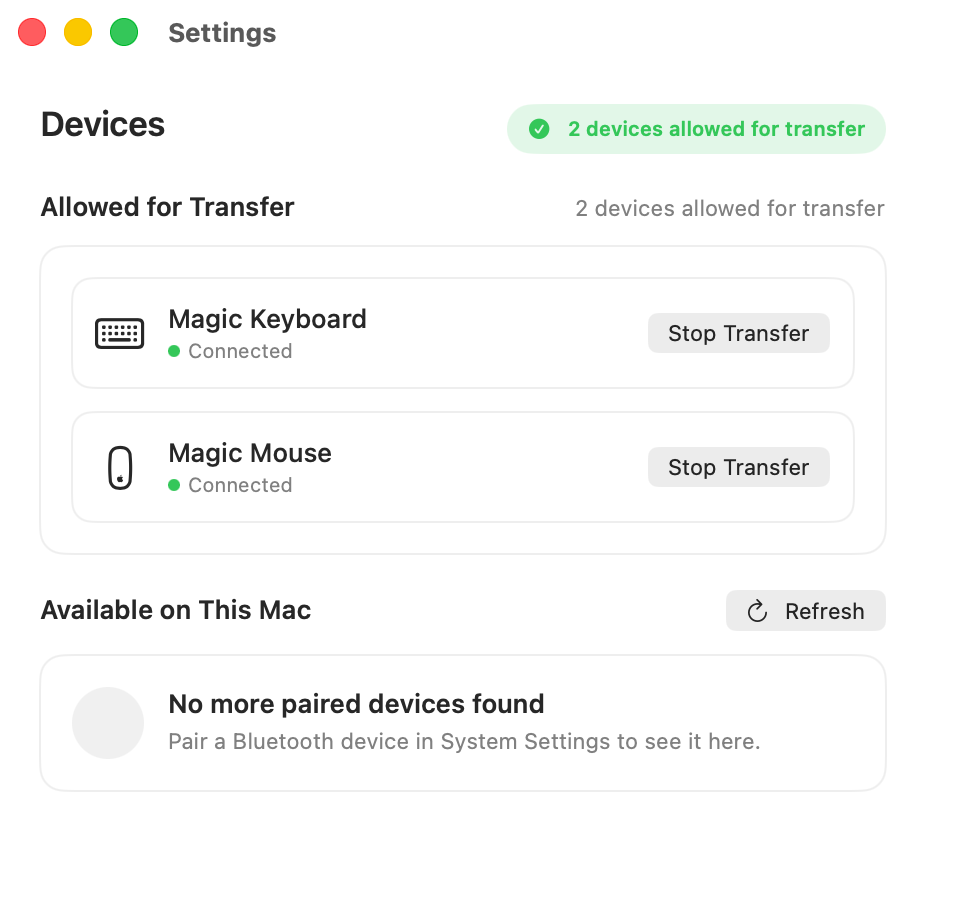
Choose devices to transfer
Choose the Magic keyboard, mouse, or trackpad you want CrossDesk to move. Some other Bluetooth devices may work too.
Transfer Devices Across Linked Macs
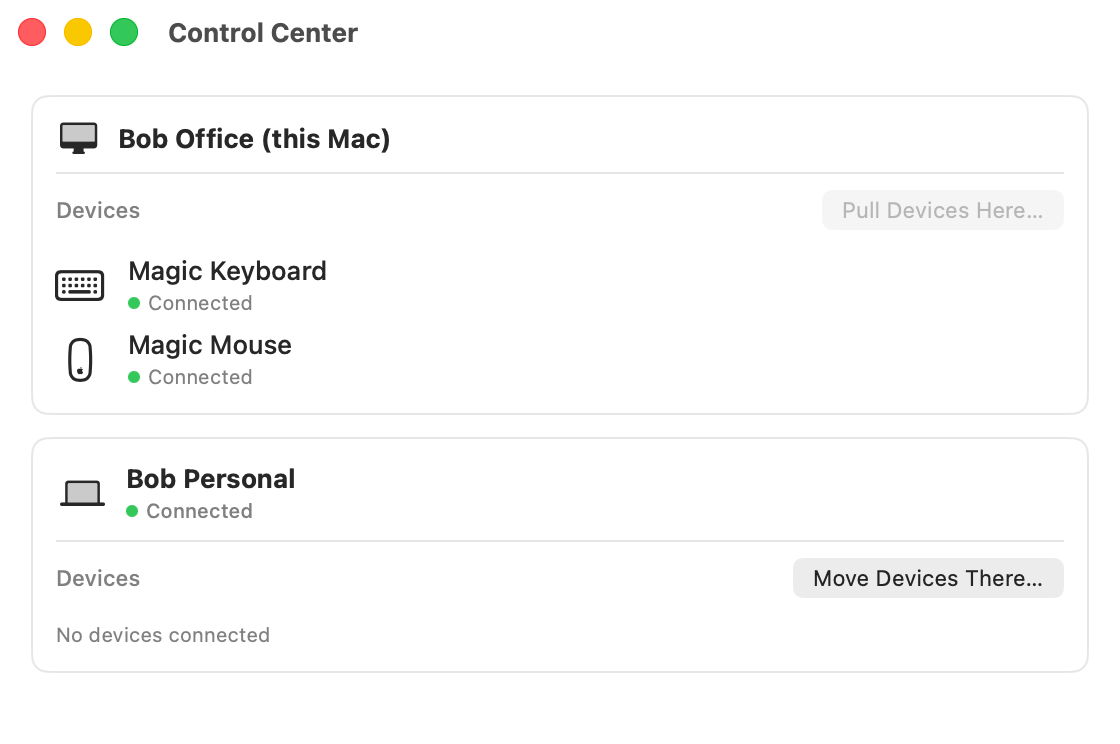
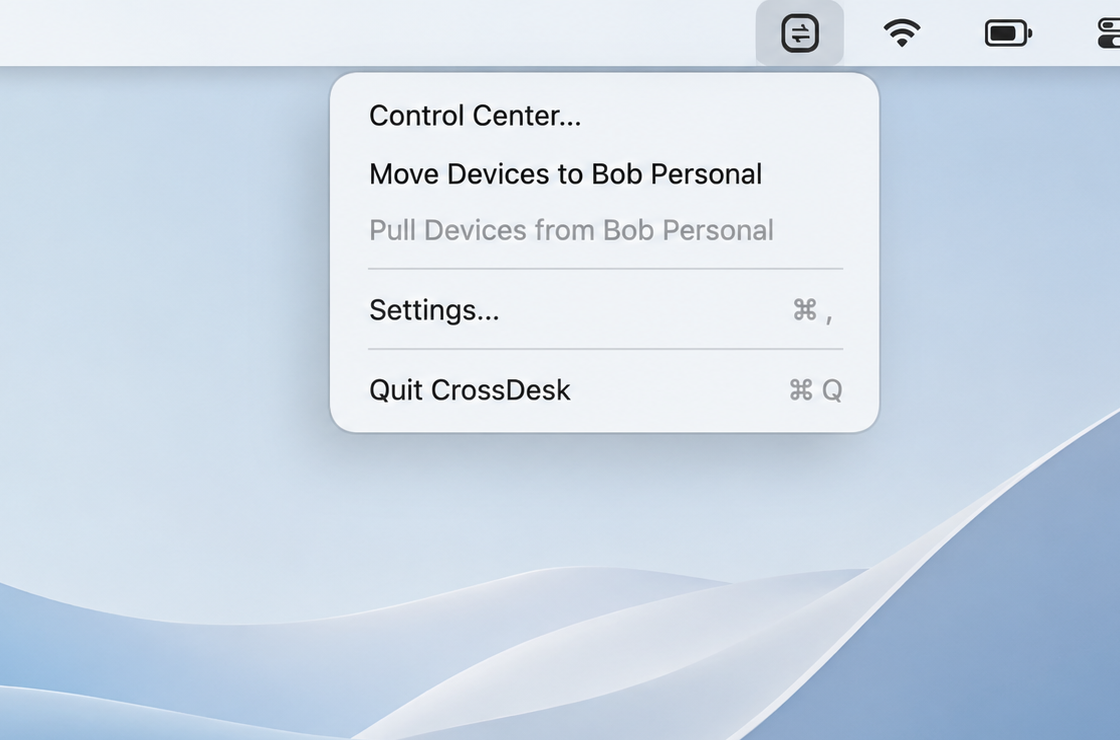
When you’re done on one Mac, open Control Center or use the menu bar quick actions to move your devices to the other Mac.
What Happens During Transfer
When you start a transfer, CrossDesk follows the same handoff sequence every time:
Unpair from Source
CrossDesk will disconnect and unpair devices marked for transfer from the source Mac.
Devices Are in Transit
Once unpaired, the other Mac is notified and automatically starts the pairing process.
Destination Becomes the Host
Once paired, the devices are physically connected to the new host. The previous host can now be shut down.
If Something Goes Wrong
Bluetooth handoff is not always perfect. If a transfer stalls, your device is not lost. CrossDesk will try to repair the connection automatically, but you can always recover it manually:
- Turn the keyboard, mouse, or trackpad off and back on.
- Connect it directly to the Mac you want to use with a USB-C or Lightning cable, depending on the device, and let macOS pair it again.
- If this keeps happening, contact support so we can help and fix the underlying issue.
Before You Install
CrossDesk is designed to make setup feel predictable before you install anything:
- Signed, notarized, and direct: delivered like a normal Mac utility download, with a clear developer identity and standard Apple security checks before first launch.
- Permissions explained clearly: Bluetooth, local network, and any other requested permissions are explained before you decide whether to allow them.
- Compatibility check up front: you can confirm whether your devices are supported by checking the compatibility page.
- Support channel available: if anything goes wrong, you can contact support for help.
Pricing Direction
CrossDesk is free during the public beta. After beta, the current plan is a paid one-time purchase.